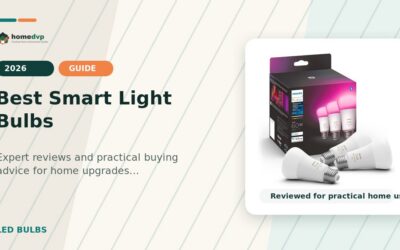

A smart light bulb is compatible only when the exact model supports your chosen platform and your home has the required network, controller, hub, or Thread border router. Brand-level claims are not enough. Check the model badge, current support page, required app, and which functions are exposed after pairing.
Compatibility should be settled before comparing decorative effects. Use this checklist first, then review brightness and current product options in our best smart light bulbs comparison.
Compatibility Has Four Layers
| Layer | Questions to answer |
|---|---|
| Electrical and physical | Correct base, voltage, fixture size, enclosure rating, and no unsupported wall dimmer? |
| Network | Wi-Fi band, Zigbee hub, Thread border router, Bluetooth setup, and coverage? |
| Controller and platform | Alexa, Google Home, Apple Home, Matter controller, or vendor hub supported by this exact model? |
| Feature | On/off, dimming, tunable white, full color, scenes, effects, schedules, energy data, and offline behavior? |
Alexa Compatibility
Alexa lights may connect through a manufacturer cloud skill, a supported hub, Zigbee on compatible hardware, or Matter. Amazon states that Matter-supported Echo devices can control compatible Matter devices locally over Wi-Fi or Thread. Check the current supported device and category list because not every Echo has the same radio roles.
Google Home Compatibility
Look for Works with Google Home or Matter support for the exact bulb. Google explains that Matter devices can use Wi-Fi, Ethernet, or Thread and require an appropriate Matter-enabled hub for local and remote features in its standard setup path. Thread devices need a compatible Thread border router.
Apple Home Compatibility
Apple Home can manage HomeKit accessories and supported Matter lights. Apple advises using current software and checking requirements for remote access and Thread. Some current iPhone configurations can add and control Matter accessories without a home hub, while a home hub remains relevant for the best remote and automation experience; verify Apple’s current support notes before purchase.
Using Matter Across Multiple Platforms
Matter Multi-Admin is designed to let a device participate in multiple Matter-certified ecosystems. Set up the bulb in one app, then use that ecosystem or the manufacturer’s instructions to generate a new pairing code for another platform. Do not reuse or publicly share setup codes.
Cross-platform does not mean identical controls. One app may expose basic on/off, level, and color while another vendor app adds animated scenes or firmware settings. Decide which app owns household routines and which app remains only for maintenance.
Pre-Purchase Compatibility Worksheet
- Write down the primary app and voice assistant.
- List existing Matter controllers, hubs, and Thread border routers by model.
- Open the exact bulb’s support page and installation guide.
- Confirm all required hardware, accounts, Wi-Fi bands, phone versions, and firmware.
- Check household sharing, guest control, remote access, and outage behavior.
- Confirm that physical switches will remain powered and that any dimmer is supported.
- Save the QR/setup code in a secure location after commissioning.
Common Compatibility Failures
- Buying from a brand logo when only selected models support the platform.
- Assuming a Matter controller is also a Thread border router.
- Trying to commission a 2.4 GHz-only accessory through an incompatible network setup.
- Cutting power at the wall and expecting schedules or remote commands to work.
- Expecting vendor-only effects to appear in every Matter app.
- Discarding the setup code before pairing and recovery are complete.
Setup and Troubleshooting Order
- Update the phone, platform app, controller, hub, and bulb firmware where the manufacturer requires it.
- Confirm that the phone and controller are on the intended home network and that Bluetooth is available for commissioning.
- Bring the bulb closer to the router or required hub for initial setup.
- Follow the exact reset sequence and wait for the documented pairing indication.
- Add the device to one primary ecosystem first, test basic controls, then share it with another platform.
- After setup, test wall-power recovery, internet loss, household access, scenes, and remote control separately.
If pairing still fails, record the bulb model, firmware, phone software, controller model, network type, and error message before contacting support. This is more useful than repeatedly factory-resetting every device in the home.
FAQ
Can one Matter bulb work with Alexa and Apple Home?
Potentially, through Matter Multi-Admin, when the bulb and both ecosystems support the relevant device type and your controllers meet current requirements.
Will smart bulbs work when the internet is down?
It depends on the architecture. Local Matter or hub control may continue on the home network, while cloud skills, remote access, and vendor services may not. Test the actual setup.
Sources
- Amazon Alexa: Matter support
- Google Home: Prepare for Matter
- Apple Support: Pair and manage Matter accessories
About This Home DVP Research
Home DVP is an independent home-improvement research and product-comparison publisher. Ryan Mitchell prepared this guide by comparing manufacturer specifications, compatibility details, retailer-provided product data, key limitations, and common homeowner use cases. We do not claim hands-on testing unless an article explicitly says so.
Review methodology Affiliate disclosure Last reviewed August 12, 2026